

















OpenAI / ChatGPT Ads for PrestaShop
Product feed, measurement pixel and Conversions API
Step 3 — The settings tabs (manual setup)
What this step does
The settings open seven tabs: Health, General, Tracking, Feed, Upload, Cron and Consent. They use the same rows as the wizard, so every change is saved on its own when you click Save; there is no page-wide Save button. Use them for a manual setup and for everything after the first setup.
Two buttons sit above the tabs. Run checks refreshes the same lines as the wizard's last step; the Health tab lists them all, runs by itself the checks that never ran, and each other tab lists its own. Run guided setup opens the wizard and never resets a value. The dot on each tab is green when all is well and amber when something needs attention; hover it to read why. In a multistore installation every value belongs to one shop: in the All shops context the page asks you to pick a shop first.
General
| Field | What it does and why it is needed |
|---|---|
| Seller name | Your store's public trading name, written into every feed line. |
| Return policy URL | Your returns page, as Pick a CMS page (a page of your shop, whose address is written into the feed) or Enter a URL. OpenAI requires it for every product. |
| Privacy policy URL, Terms of service URL | Optional, with the same two ways to set them. Written to the feed when set. |
| Target country | The market your products are advertised into (feed column target_countries). Set it to where you actually sell and ship. |
| Store country | The country your business operates from (feed column store_country). |
Tracking
| Field | What it does and why it is needed |
|---|---|
| Tracking | The master switch. Off stops every pixel and Conversions API event: the storefront behaves as if the module were not installed. While it is Off the rest of the tab is hidden; turn it On to add your Pixel ID. |
| Pixel ID | Links browser events to your ad account. Until it is set, nothing is rendered on the storefront. |
| Conversions API | The server-side channel, resistant to ad blockers and network loss. It needs the token below and the events job. |
| CAPI token | Stored encrypted and shown masked. Send test event checks it with OpenAI without recording a conversion. |
Feed
Product feed is the switch at the top: while it is Off the rest of the tab is hidden, and the feed job does not rebuild the feed; turn it On to choose what goes in it. Feed setup chooses Simple or Advanced. The rows are grouped under titles: Categories, Stock, then in Advanced Brands and suppliers, Features and attributes, Price and discounts, Specific products, and finally Titles and content. Switching between Simple and Advanced never changes a value.
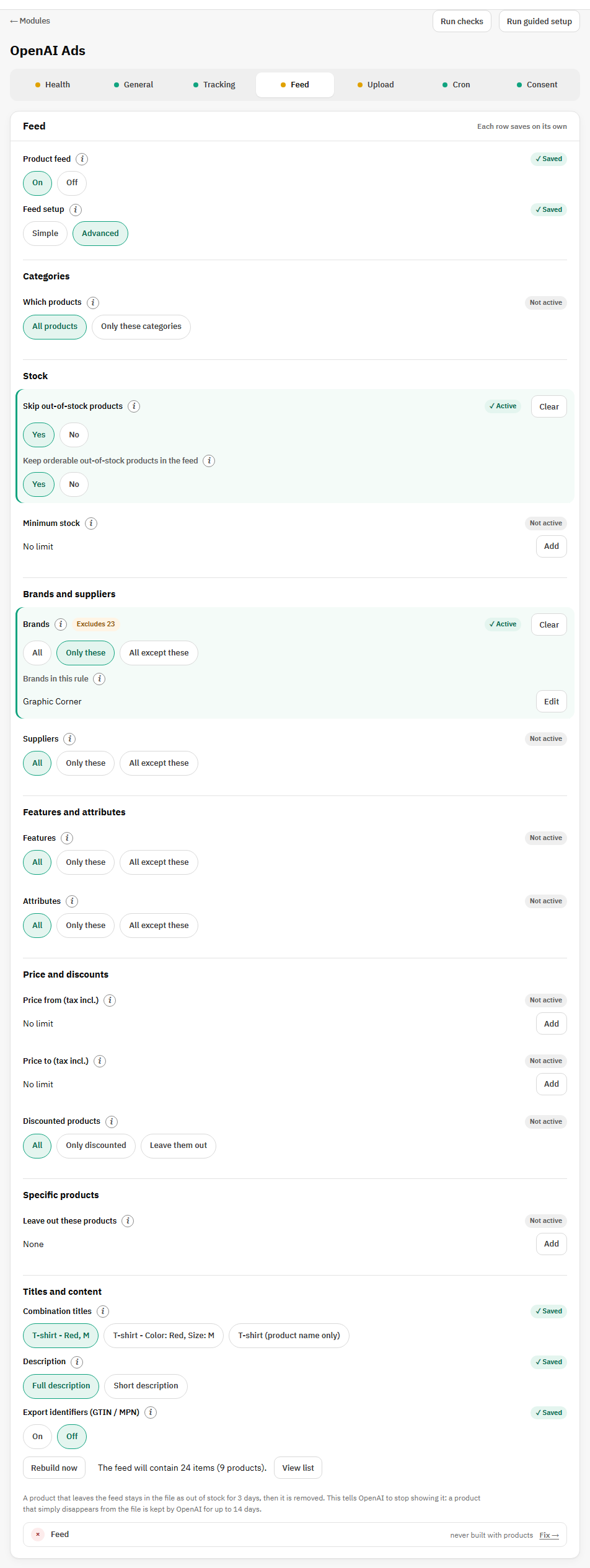
Every rule shows whether it applies: Active (marked green) when it narrows the feed, Not active when it does not, and Nothing picked yet (amber) when you chose Only these but did not pick anything, which does not restrict the feed. A rule that leaves items out shows Excludes followed by the number beside its title. Edit and Clear sit on the right: Clear puts the rule back to no restriction and empties its list in one click.
| Field | What it does and why it is needed |
|---|---|
| Which products | All products, or Only these categories with the category tree (product counts beside each category). |
| Skip out-of-stock products, Keep orderable out-of-stock products in the feed | As in wizard step 4. The second one sits inside the first, and only while the first is Yes. |
| Minimum stock | Advanced. Items with fewer units in stock are left out. Empty means no minimum. |
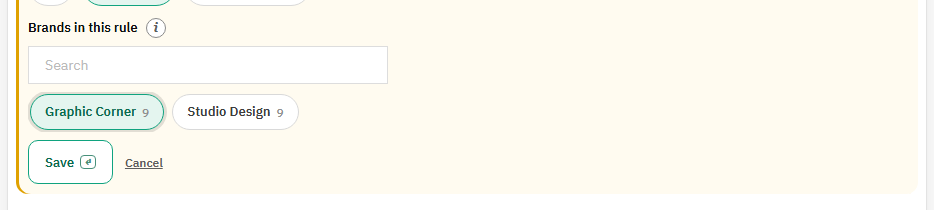
| Brands, Suppliers | Advanced. All, Only these or All except these. Choosing Only these or All except these opens the list at once: tap the names to pick them, with the number of products beside each, and a search box for long lists. |
| Features, Attributes | Advanced. The same three choices, with the values grouped by feature (Material: Cotton) or by attribute group (Color: Red). An attribute rule applies to combinations. |
| Price from, Price to (tax incl.) | Advanced. Items cheaper or dearer than this are left out. A price such as 12.50 or 12,50; the top of the range must be at least its start. |
| Discounted products | Advanced. All, Only discounted, or Leave them out. Discounted means a price reduction applies right now. |
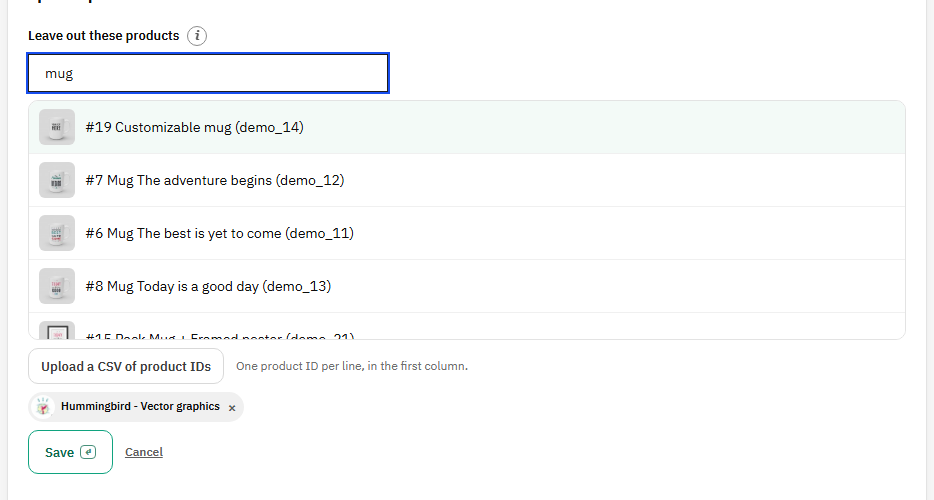
| Leave out these products | Advanced. Search by name, reference or ID and pick the products to keep out of the feed; each result shows its picture, and a picked product leaves the list. Upload a CSV of product IDs adds many at once: one ID per line, in the first column; the screen says how many were added and how many IDs were not found. |
| Combination titles | How a combination is named: T-shirt - Red, M, T-shirt - Color: Red, Size: M, or the product name only. |
| Description | Advanced. Full description or Short description leads; the other one is used when the first is empty. |
| Export identifiers (GTIN / MPN) | Advanced, off by default. Adds a gtin column, filled from the product's or combination's EAN-13, UPC or ISBN, and an mpn column. Only well-formed codes with a valid check digit are exported. A combination reports its own code, never its parent's. |
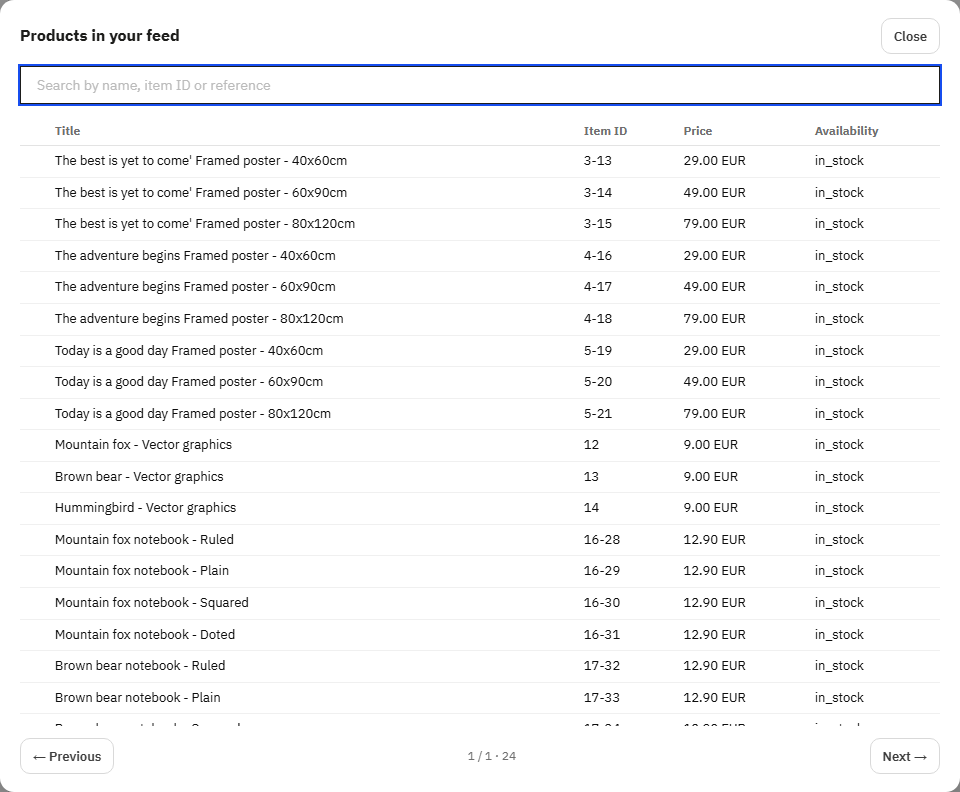
Once a feed has been built, the bottom of the tab shows Rebuild now, the number of items and products the feed will contain with the current settings, and View list. The numbers come from a dry run of the same code the feed job uses, so they match the next build. On a large catalogue the last numbers appear at once, marked (updating...), and the fresh ones follow when the recount finishes. View list opens the items the feed will contain, 50 per page, with a small picture, the title, item ID, price and availability, and a search by name, item ID or reference.
Rebuild now builds the feed immediately and reports the product count; with SFTP delivery it also uploads the file. What one feed line contains: the item ID (product ID, or product ID and combination ID joined by a hyphen), the title (with the combination as chosen), plain-text description, brand, the default category's path, the condition (new, used or refurbished), the combination's own URL, main and additional images, the regular price with the current price as a sale price when a discount applies, availability derived from stock and the out-of-stock choices, the weight with its unit, seller details, whether returns are accepted and within how many days (when PrestaShop's merchandise returns are on), target and store country, and for combinations the parent's group ID and the selected attributes. A combination uses its own images in PrestaShop, falling back to the product's images when it has none.
Products that leave the feed
OpenAI does not treat a product that is missing from the file as deleted: it keeps the last version it received for up to 14 days and can go on showing it, in stock and at the old price. So when a product leaves your feed (a rule now excludes it, it sold out while Skip out-of-stock products is Yes, it was switched off or deleted), the module does not drop it at once. It stays in the file for 3 days as out of stock, with its last title, link, picture and price, and is then removed; OpenAI stops showing it as soon as it reads the file. A product that comes back within the 3 days is simply listed normally again. Under Rebuild now, the tab explains this and shows “In the file as out of stock right now” with the number of such items. They are not part of “The feed will contain” or of View list, which count only what you offer, so during those 3 days the file holds more lines than that total.
Upload
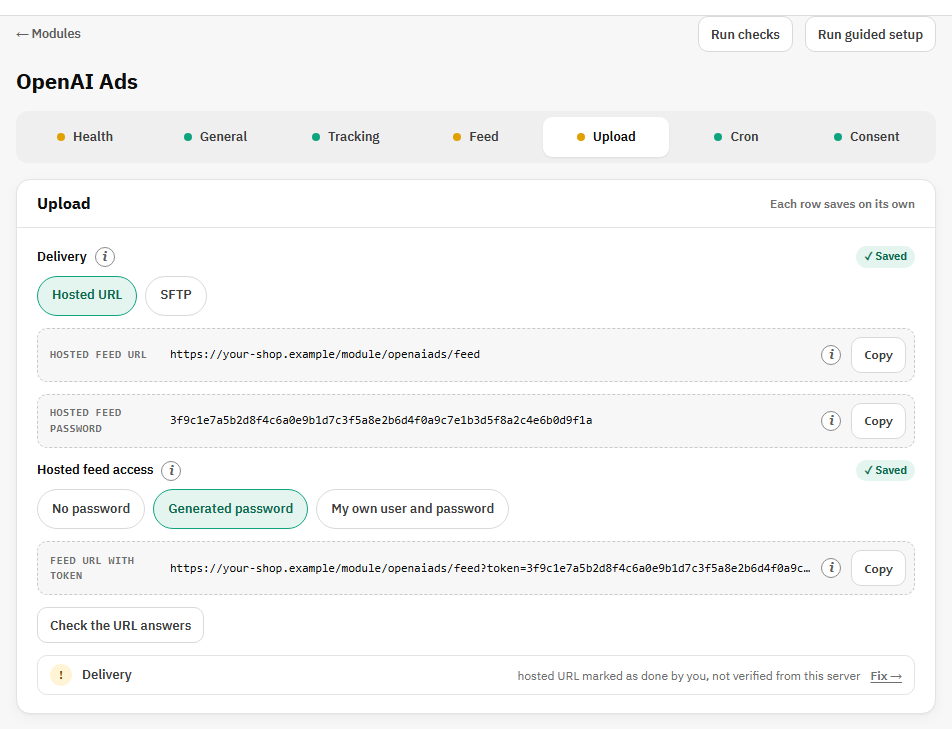
The Hosted URL / SFTP selector is a real setting, saved when you click it: the feed job uploads the file only when SFTP is chosen. The other method's rows are hidden, not cleared, so switching back later needs no retyping.
| Field | What it does and why it is needed |
|---|---|
| Hosted feed URL | The address OpenAI fetches. It carries no query string, because OpenAI's importer refuses one. |
| Hosted feed access | No password (the default: the feed holds only public catalog data and it works with every host), Generated password (HTTP Basic authentication with the password shown and any username), or My own user and password. |
| Feed URL with token | The older address with the password in the query string, for setups that already use it and for inspecting the last built file. |
| SFTP host, port, user, password | Copied exactly from Ads Manager → Tools → Feeds → SFTP connection. The port is 22 unless Ads Manager says otherwise; the password is stored encrypted and shown masked. |
| Remote directory | Use / unless Ads Manager names a folder; OpenAI expects the file at the root. |
Hosted: Check the URL answers. SFTP: Test connection, and Push now to build and upload immediately.
Cron
One block per job, the feed job first: its URL and the same call as a ready-made crontab line, each with a Copy button, when your scheduler last called it, and Run now to run it on the spot. Its result stays under that job.
Consent
| Field | What it does and why it is needed |
|---|---|
| Consent | No consent banner on this store, I use a consent banner, or Decide later, as in wizard step 3. |
| Consent cookie name | The cookie your consent tool sets. Shown with a banner. Check now reads it from your browser. |
| Consent JS expression | A JavaScript expression that is true once the shopper has accepted marketing. Shown with a banner. Try it on the storefront shows its value on your shop. |
| Load the pixel script only after consent | Off by default. When on, OpenAI's script is not downloaded until the expression is true. The page keeps checking for five minutes, so a banner accepted after the page loads still starts the pixel. With no expression configured the script never loads, which is the safe direction. |